Input files
An analysis needs three files, plus one optional one:
- A peak table from Progenesis QI, MZmine, MS-DIAL or Bruker Metaboscape.
- A sample list that maps each injection (raw data file) to a sample code.
- A metadata file that maps each sample code to a biological group.
- Optionally, a fragment database (
.mspor.mgf) with MS2 spectra for the features.
A peak table has one column per injection, but the questions you want to answer are about biological groups. The sample list and metadata file connect the two: injections that share a sample code are technical replicates, and samples that share a biological group are biological replicates.
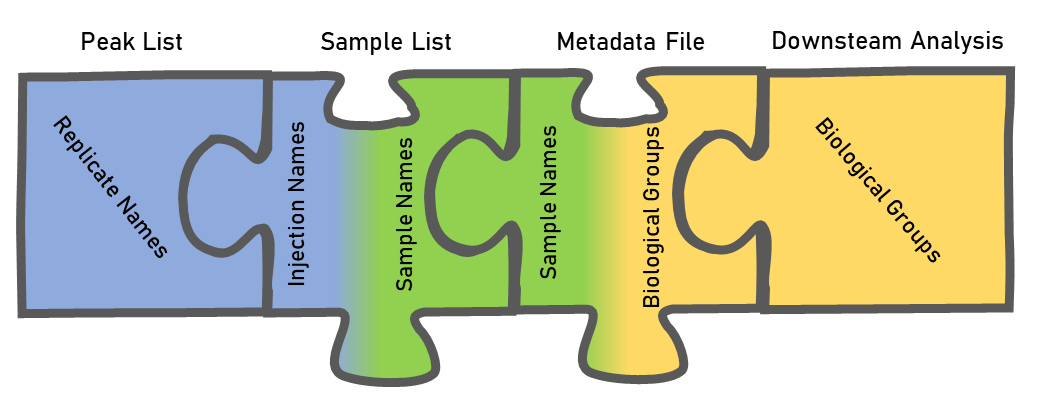
Technical replicates (repeat injections of each sample) are strongly recommended. MPACT's reproducibility filter and its error propagation both use them.
You do not have to write the sample list and metadata by hand. If your injection names follow a pattern, MPACT builds both from the peak table.
Peak table
The format is detected from the file's content, not its name or extension, and
converted automatically. Peak tables are uploaded as .csv or .txt.
Export dialogs change between versions
The screenshots below come from older versions of each program. Menu names may have moved, but the export path is the same.
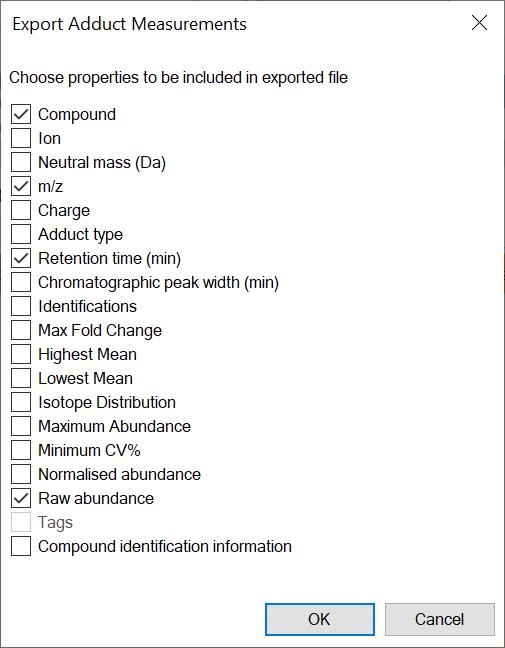
In Review Compounds, choose File > Export Compound Measurements and export raw or normalized abundance. Include the compound, m/z and retention time columns.
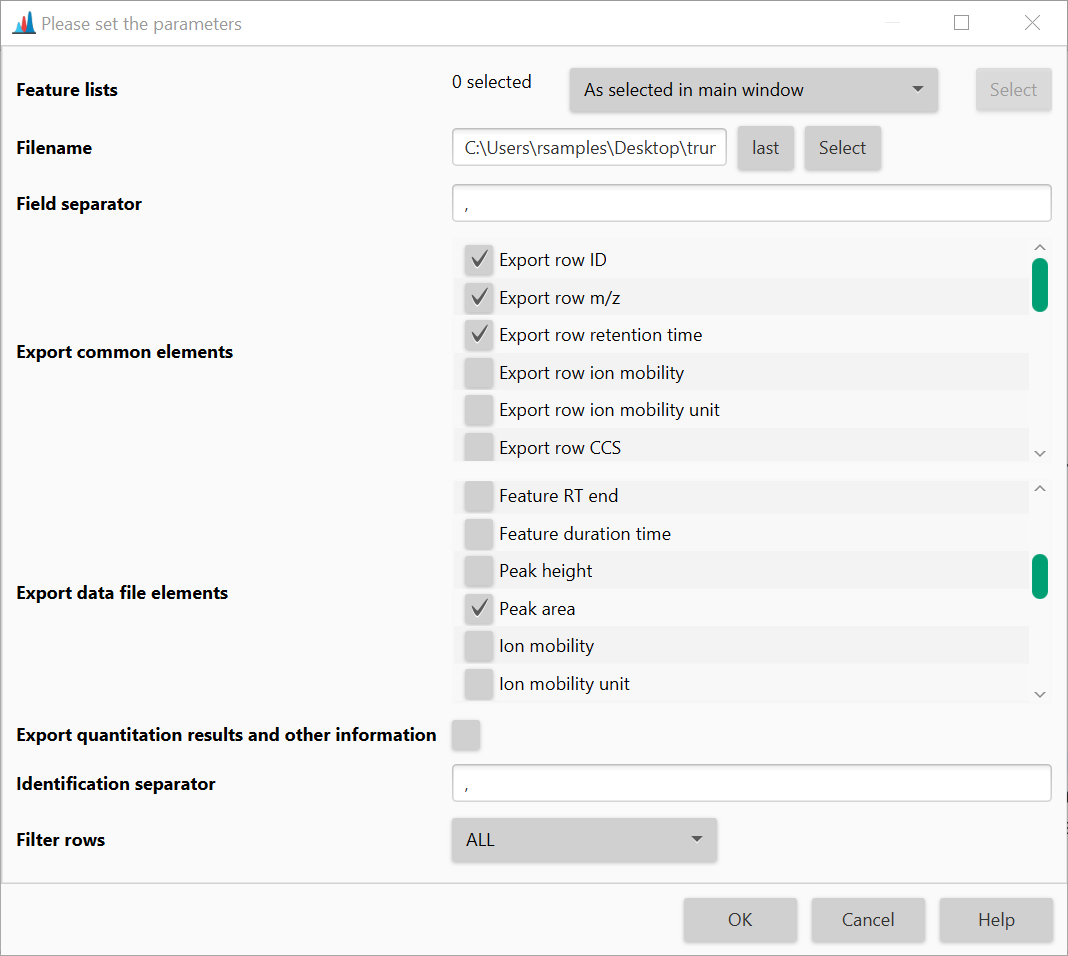
Build an aligned feature list, then choose Feature list methods > Export feature list > CSV (legacy MZmine 2). Export the row ID, m/z, retention time and peak area.
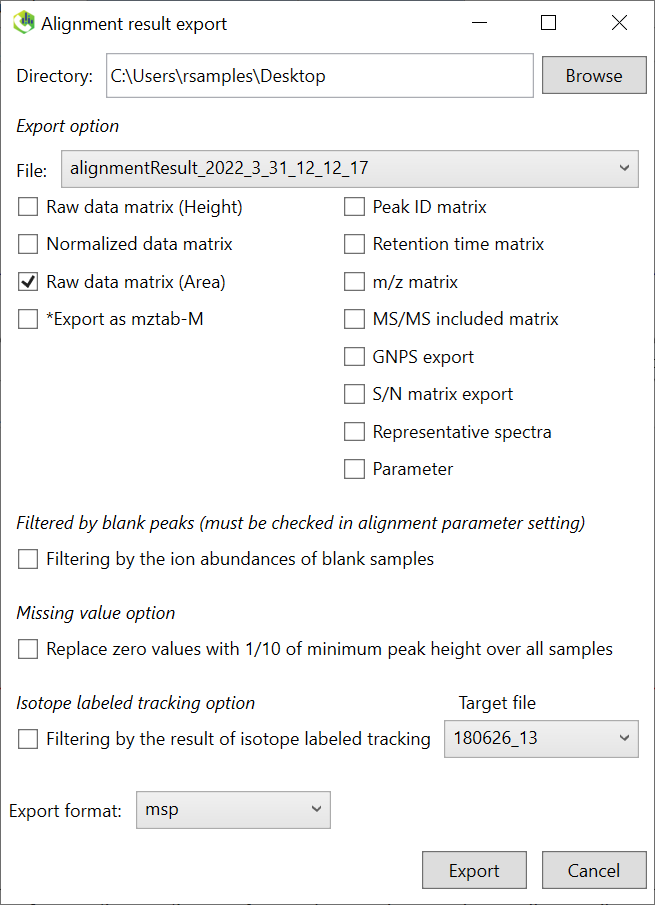
Choose Export > Alignment result and export Raw data matrix (Area).
MPACT reads the .txt and .csv exports from MS-DIAL 5.4 and 5.5. To view
MS2 spectra, also export the alignment's spectra as MSP and upload that as
the fragment database.
Export the feature table as a CSV file.
Other software
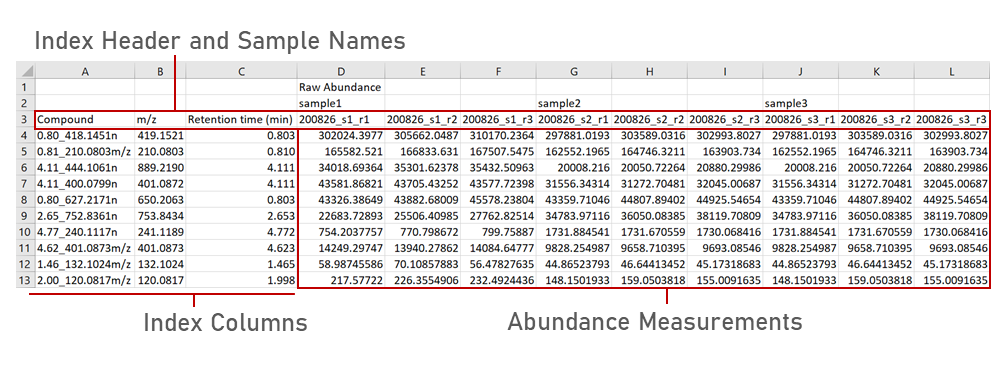
To use a peak table from a program MPACT does not support, rearrange it into
the Progenesis layout, by hand or with a short script. Only the third header
row matters: it must hold the index headers (Compound, m/z,
Retention time (min)) followed by one column per injection, named exactly as
in your sample list. The first two header rows can be left blank, since groups
come from the sample list and metadata.
Sample list and metadata
There are two ways to provide these: let MPACT build both from your injection names, or write them yourself.
Automatic: build them from injection names
Most injection names already say which sample and replicate they are, for
example 200826_PTY087I2_0umce1_r1 (sample 0umce1, technical replicate r1).
MPACT can read those names and write both sheets for you:
- Select the peak table on File Selection.
- Click Create… next to Sample List or Sample Metadata.
- MPACT reads the injection names from the peak table, guesses the naming rules, and fills in a sample code and a biological group for every injection.
- Check the table and the group list on the right. Adjust the rules or overwrite any cell that is wrong.
- Click Save. Both sheets are saved to your library and selected.
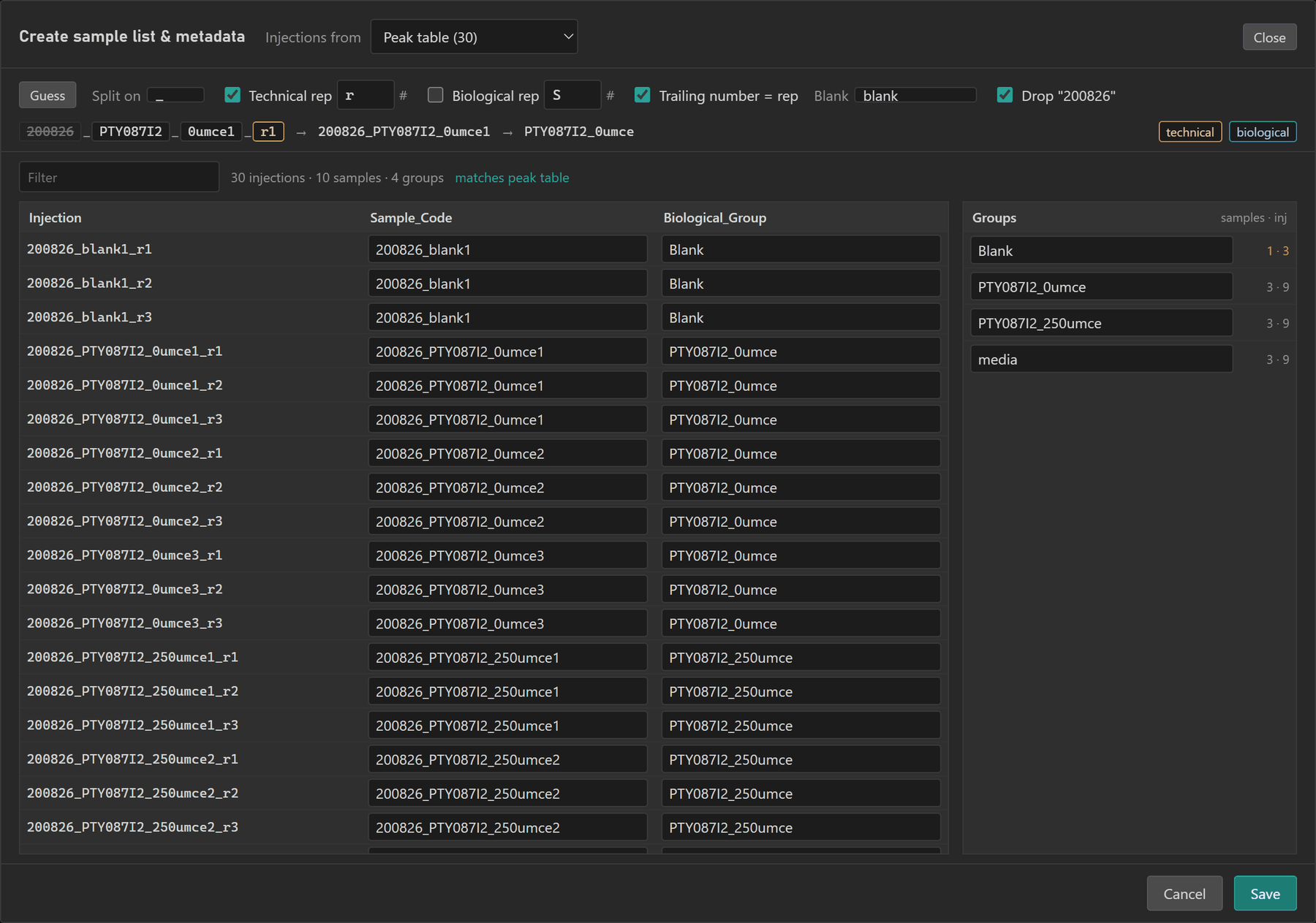
200826_PTY087I2_0umce1_r1 becomes sample 200826_PTY087I2_0umce1 in group PTY087I2_0umce.This works best when injection names follow a few conventions:
- Separate the parts of a name with a consistent character, such as
_. - Mark technical replicates with a consistent prefix and number (
r1,r2,r3), and biological replicates likewise if they are numbered separately (S1,S2). - Include
blankin the name of every solvent blank.
Every option in the editor is described under Creating the sample list and metadata.
Manual: write them yourself
If your names do not follow a pattern, or you already keep these sheets, write the two CSV files yourself or export them from your instrument's sample queue.
Sample list
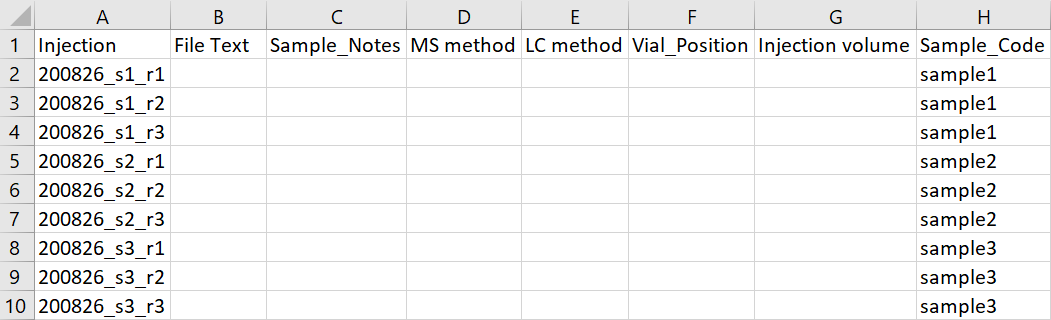
A CSV with an Injection column (the injection names used in the peak table)
and a Sample_Code column. Other columns are ignored, so an export of your
instrument's sample queue usually works once those two columns are named.
Metadata file
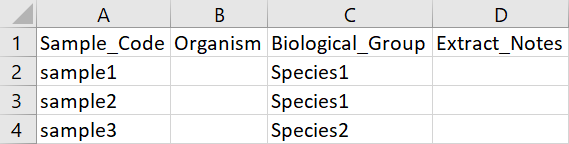
A CSV with a Sample_Code column and a Biological_Group column. Other
columns are ignored.
Name your solvent blanks consistently (for example Blank), since blank
filtering removes features found in one group you choose.
Shared sheets
A sample list and metadata file may cover more samples than the peak table. This lets a class or a lab keep one combined pair of sheets for many datasets. Each analysis uses only the rows its peak table needs. Repeated rows, which appear when several sheets are pasted together, are merged rather than treated as an error. The automatic editor keeps the other datasets' rows unchanged when it saves into a shared sample list.
Fragment database
An .msp or .mgf file of MS2 spectra exported by the same software as the
peak table. With it, MPACT can:
- show each feature's MS2 spectrum in the details panel,
- search the spectra against the MS-DIAL MS/MS library (see Feature Info),
- write a re-indexed copy for GNPS2 molecular networking (see Downloads).
Spectra are matched to features by compound ID first, and by m/z and retention time when no ID matches. Progenesis writes neutral masses rather than adduct m/z into its MSP files, which is why ID matching comes first.