Running and managing runs
Starting a run
The Run tab summarizes the filters and the statistical comparison you have set up. Give the run a Label if you like (you can rename it later) and click Run.
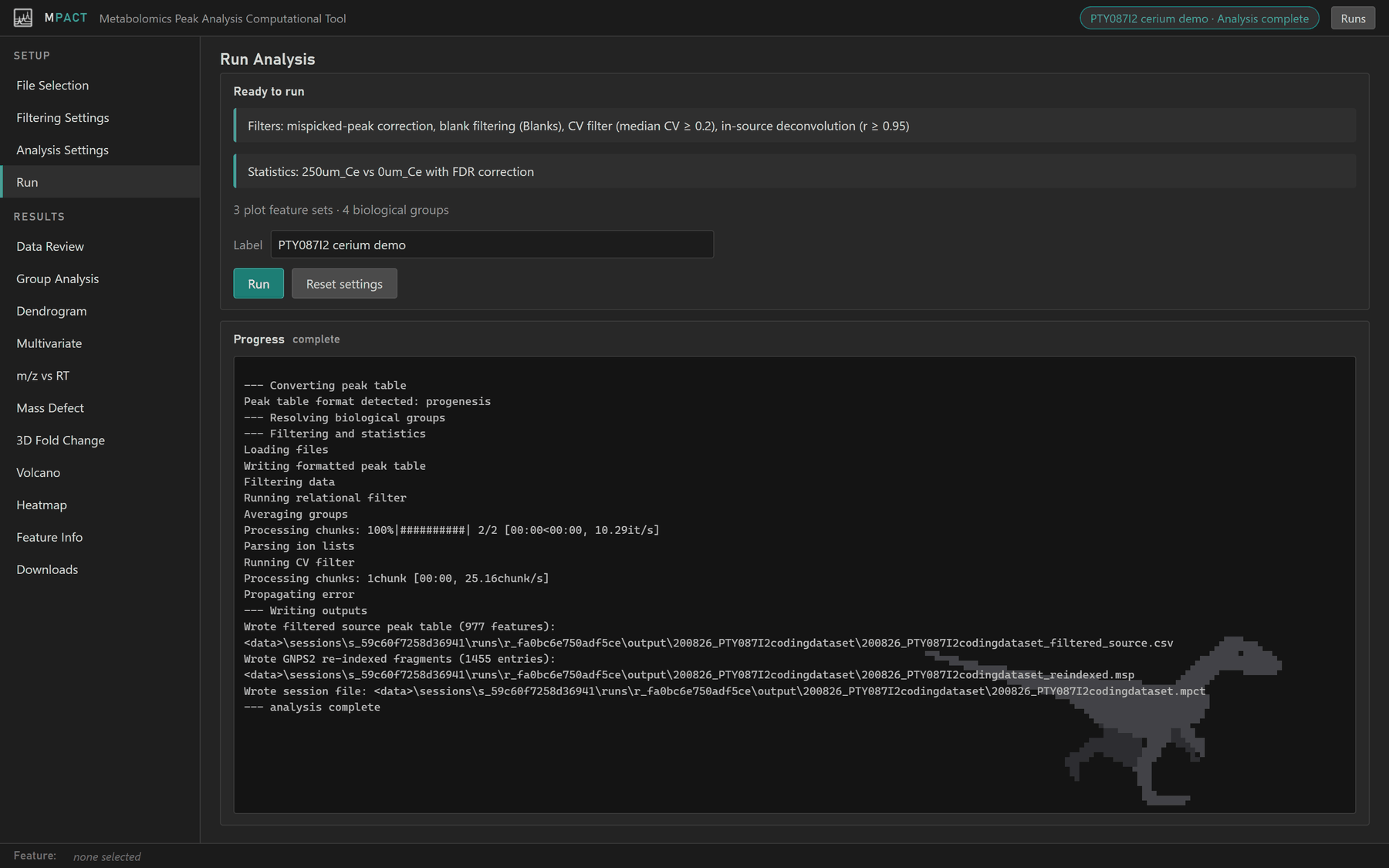
The analysis runs on the server in its own process. Its log appears under Progress as it goes, and the chip in the top bar shows the current stage. The demo dataset takes a few seconds; a peak table with tens of thousands of features can take a few minutes. You can leave the tab, or close the browser: the run carries on, and the result is waiting when you come back.
Cancel stops a run in progress. Reset settings returns every setting on the Filtering and Analysis pages to its default and removes your Plot Feature Sets.
When the run finishes, the result tabs in the sidebar become available. If it fails, the error is shown in the log, and the run stays in your list so you can see what happened.
Some servers run only one or two analyses at a time. If yours is busy, the run waits in a queue and starts by itself.
Previous runs
Runs in the top bar lists every analysis in your workspace, newest first.
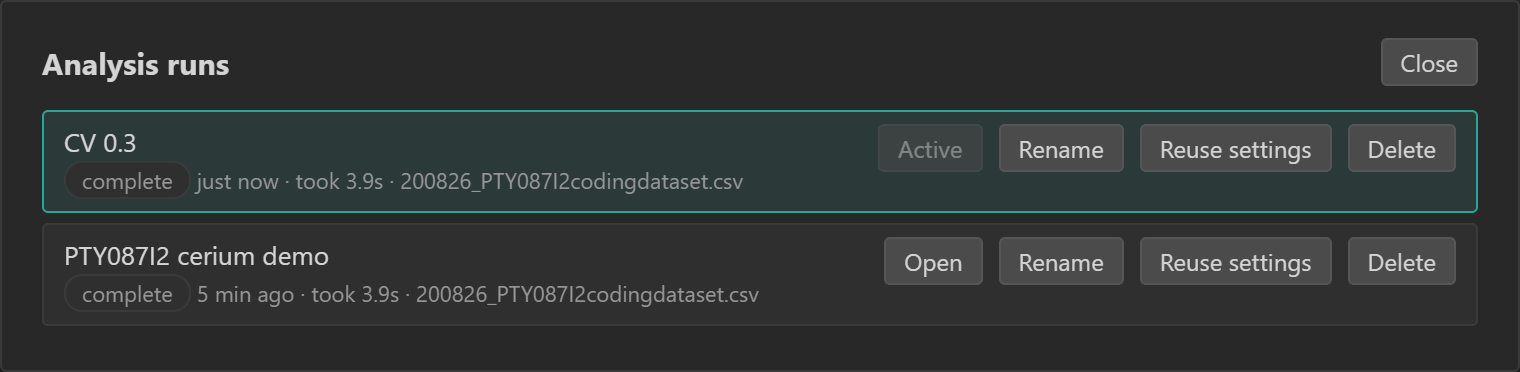
- Open makes a run the active one. Every result tab then shows that run.
- Rename changes its label.
- Reuse settings loads the run's files, filters and Plot Feature Sets back into the Setup pages, ready to change and run again. This is the quickest way to try a different CV threshold or a different pair of groups.
- Delete removes the run and its output files.
Old runs may be deleted after a period of inactivity set by the server operator. Download anything you want to keep from the Downloads tab.